


Cloud Sync allows you to store your files in the cloud, making them accessible from any device with an internet connection. This means that you can easily work on a document on your laptop, and then pick it up right where you left off on your smartphone or tablet. No more emailing files to yourself or carrying around USB drives.
A Convenient Way to Access Your File as Well as a Reliable Backup Solution
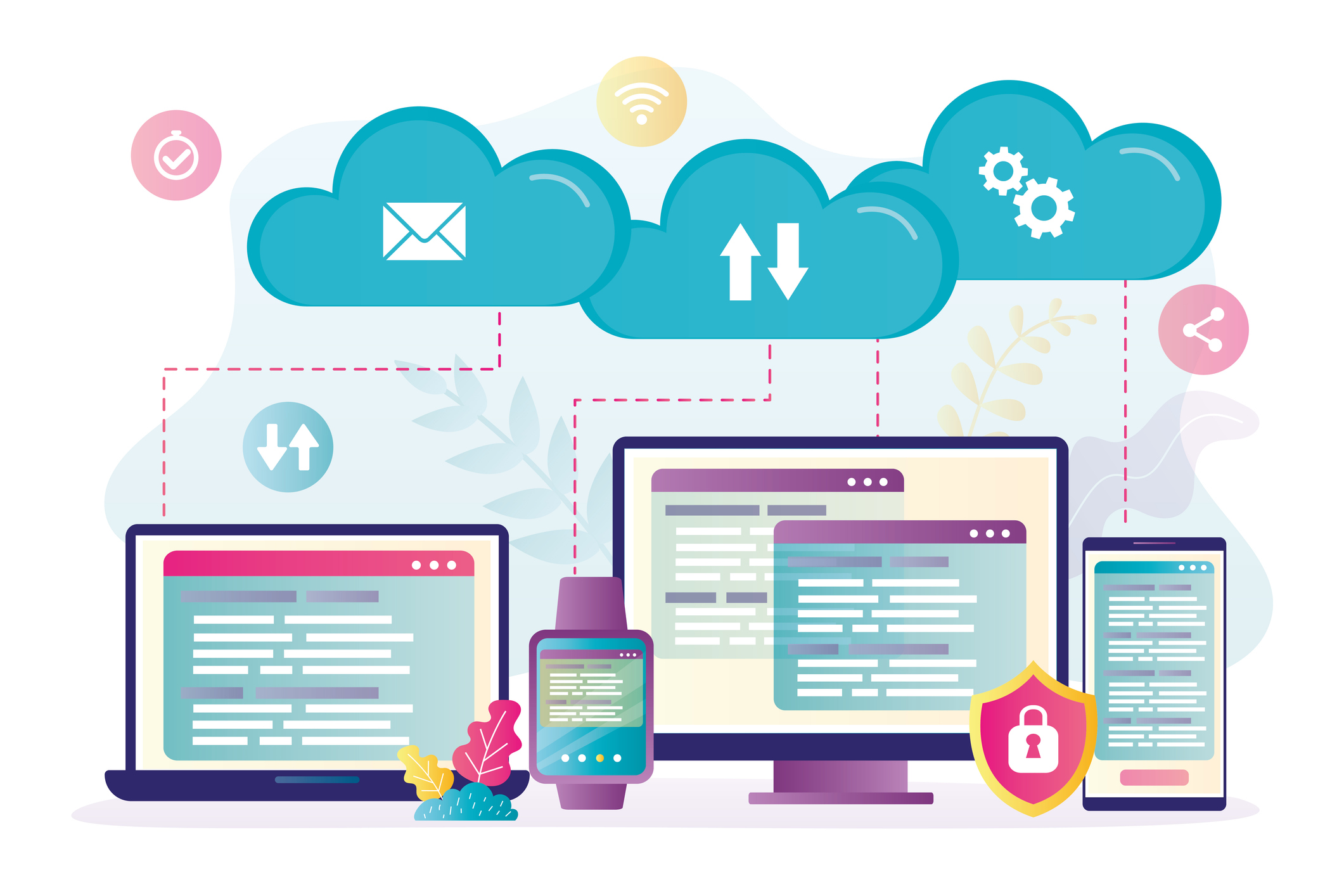
Not only does Cloud Sync make it convenient to access your files, but it also serves as a reliable backup solution. By storing your files in the cloud, you can rest assured that they are safe and secure, even if your device is lost or damaged. This added layer of protection ensures that your important documents, photos, and videos are always accessible.
Import and Upload Files from the Cloud with Tiny Scanner
Tiny Scanner is a mobile app that allows users to scan documents and save them as PDF files. One of the app's features is the ability to import files from cloud storage services such as Dropbox, Google Drive, and OneDrive. This makes it easier for users to access and manage their documents on the go.
How to Import Files from the Cloud on iPhone?
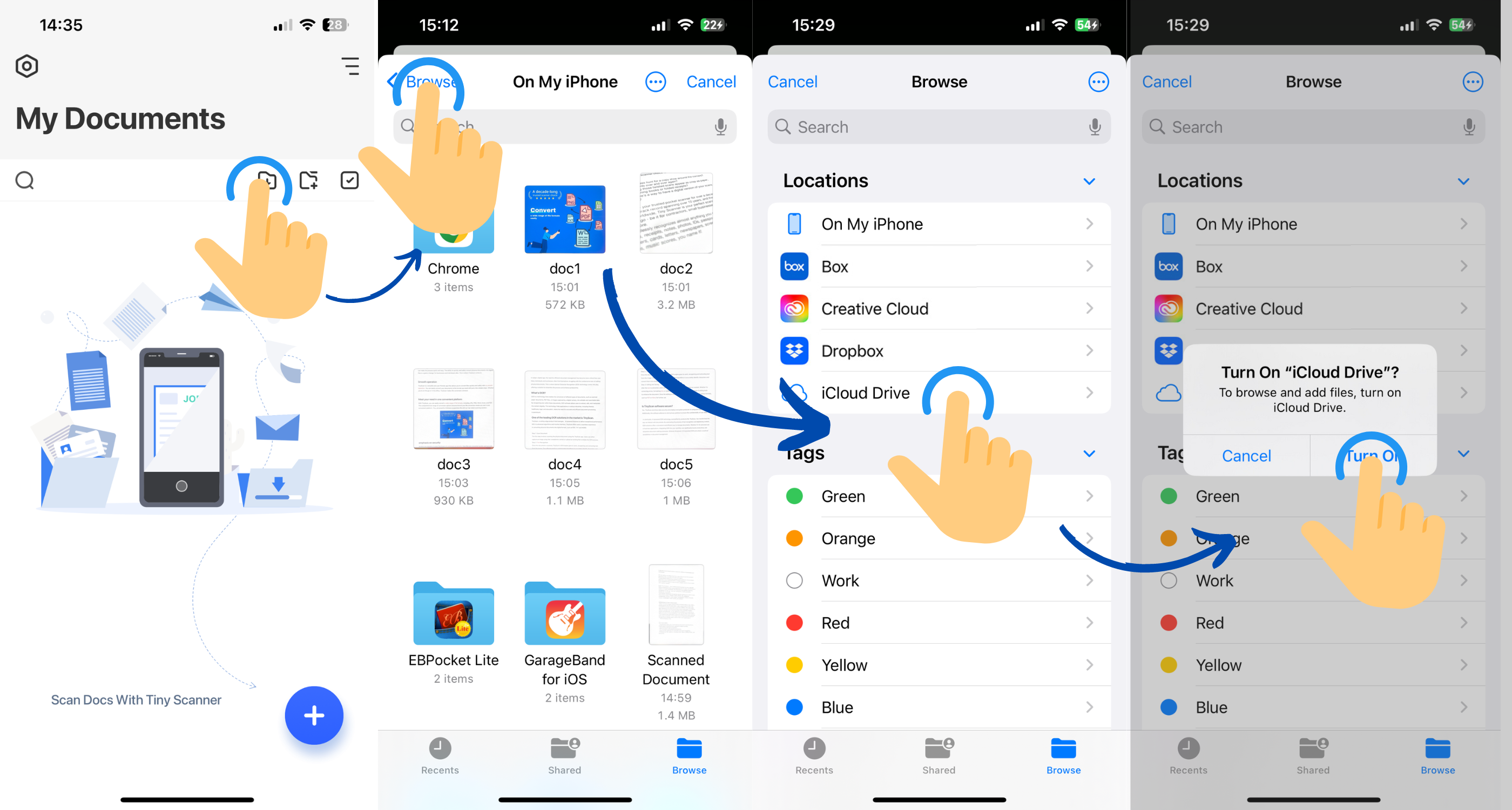
Step 1: Tap the Import button at the top of the screen.
Step 2: Tap the Browse button at the bottom right and then tap Browse in the top left corner.
Step 3: Choose the location from which you want to import files.
Step 4: Tap the required cloud service app and then tap Turn On on the pop-up window.
Step 5: Choose the file you want to import to Tiny Scanner!
How to Import Files from the Cloud on Android?
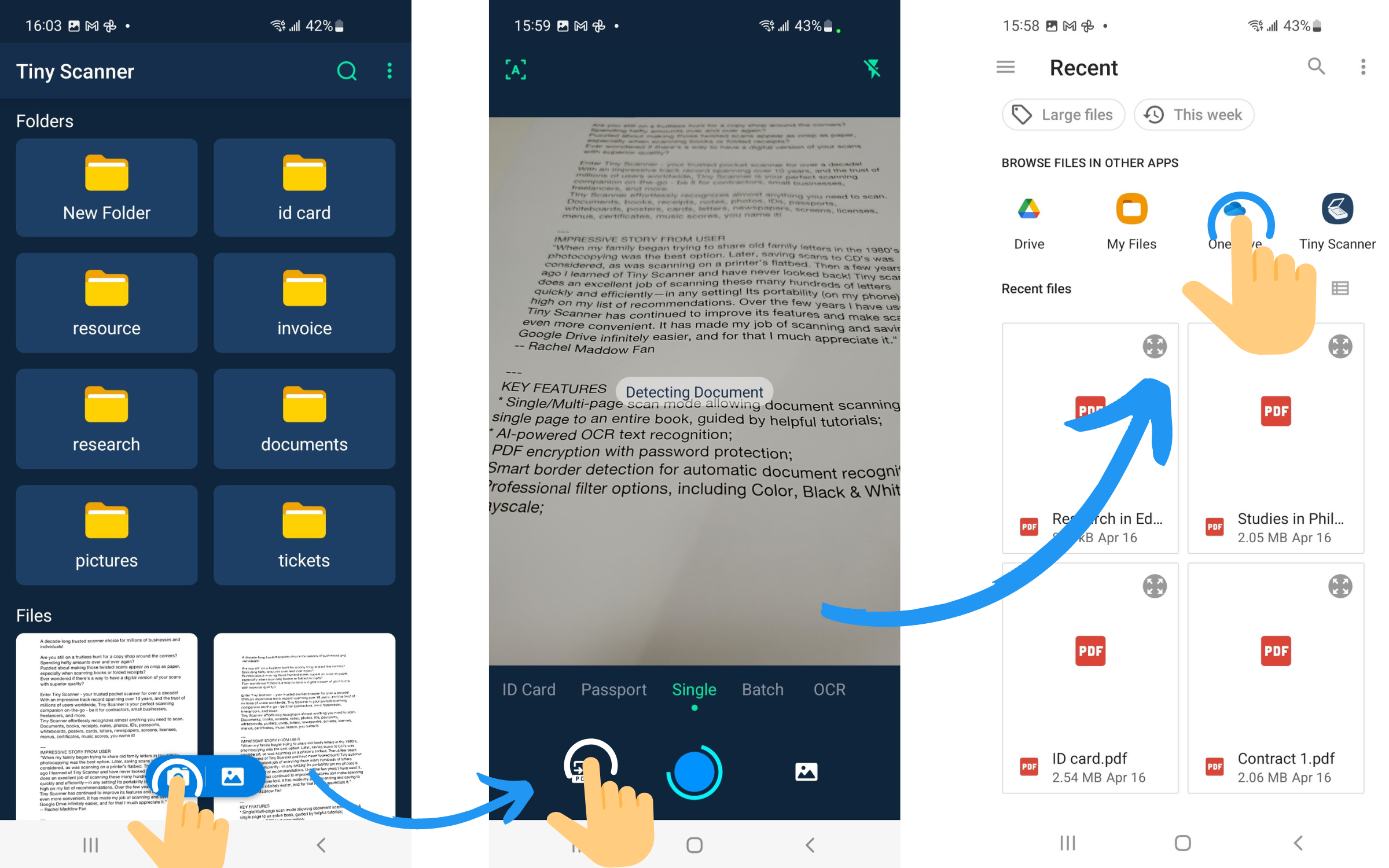
Step 1: Open the Tiny Scanner app and tap the camera icon at the bottom of the screen.
Step 2: Tap the PDF button at the bottom left.
Step 3: Tap the required cloud service app and choose the file you want to import to Tiny Scanner!