



In both work and study, it's common to encounter large PDF files that hinder efficiency. Oversized files not only take up valuable storage space on your phone or computer but can also cause email sending failures or be rejected when uploading to websites and cloud storage platforms. Compressing PDF files is the ultimate solution to this problem. Whether you’re using a Mac, Windows PC, or mobile phone, PDF compression helps you easily overcome file size limitations.
This article introduces several quick and easy ways to compress PDFs, including built-in system functions and third-party tools. In particular, we recommend Tiny Scanner—that allows you to compress files efficiently anytime, anywhere.
Why Compress PDF Files?
The benefits of compressing PDF files are clear:
- Save storage space, making your phone and computer run more smoothly without lag.
- Makes file sharing easier, especially on platforms like email that have file size limits.
- Meet various platform upload requirements. For example, Gmail limits attachments to 25MB. Many schools, government websites, and job application platforms also restrict PDF sizes, with common limits like 5MB, 10MB, or 20MB. Compression helps ensure your files are accepted without issues.
- Mastering compression techniques saves time and prevents the hassle of oversized files—an essential step for boosting productivity.
Different Ways to Compress PDFs
For Mac and Windows users, using online compression tools is the most convenient option. Simply drag and drop your file into the tool, and it will automatically compress it, quick and easy.
For mobile users, we recommend our Tiny Scanner app. Its advantages include:
- Completely free, with no ads or watermarks—no worries about privacy or annoying pop-ups.
- Three compression levels, Large, Medium, and Small, so you can balance file size and clarity as needed.
- All-in-one, Scan, edit, compress, and share, all in one app.
- Tiny Scanner is more than just a PDF compressor, it’s a powerful mobile office tool with scanning and editing features built-in.
How to Compress Files with Tiny Scanner
Want to compress a file with Tiny Scanner? It’s incredibly simple:
- Download and open the Tiny Scanner app.
- Tap the camera icon to scan your document, or import a file directly from your photo album or file.
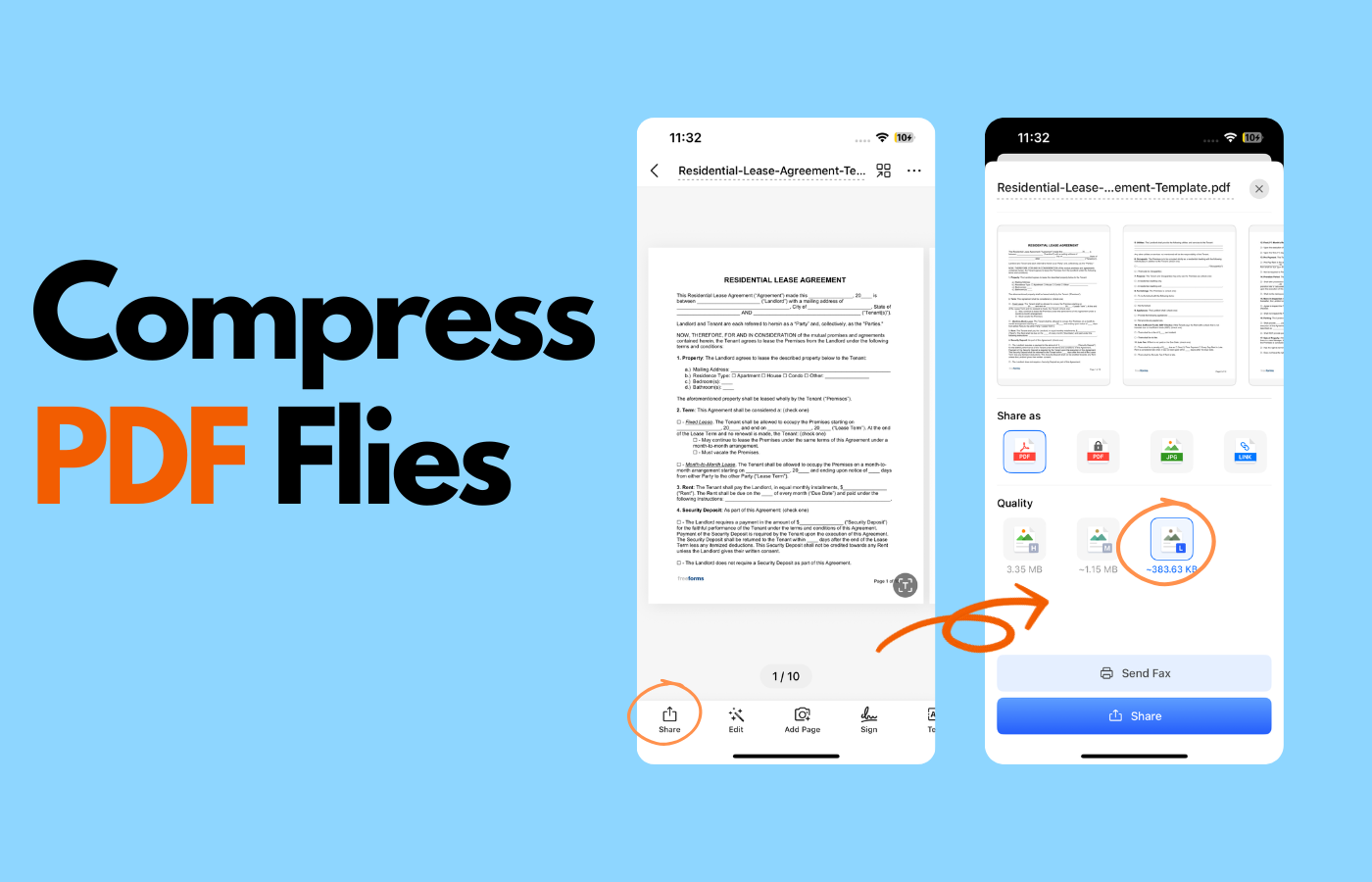
- After adjusting your file as needed, tap the share button.
- Under the “Share as” option, select “PDF”, then choose a compression level—Large, Medium, or Small—under “Quality”.
- Tap the share button at the bottom and choose how you’d like to share or save the file, such as via email, link, or saving to Files.
- The entire process takes less than a minute—perfect for quick, convenient file management.
Why Choose Tiny Scanner for Compression?
Tiny Scanner offers several standout advantages for PDF compression:
- One tap to convert formats, easily turn paper documents into PDF, TXT or JPG files.
- Work on the go without relying on a computer—your phone does it all.
- Built-in editing tools let you crop pages, add text or images directly in the app—no need to switch between apps.
- Simple and fast interface that anyone can use—even beginners.
- Secure and versatile, with multiple sharing options that suit all kinds of work, school, and daily life scenarios.