


Secure Your Scanned Document: Using Tiny Scanner for File Encryption
In today's digital age, the importance of securing your scanned documents cannot be overstated. Whether you’re handling sensitive business contracts, personal identification documents, or private correspondence, ensuring that your digital files are protected from unauthorized access is crucial. This blog will delve into the scenarios where document security is vital, the benefits of securing your scanned files, and how to use Tiny Scanner to encrypt your documents effectively.
Why Secure Your Scanned Documents?
Sensitive Personal Information: Scanned copies of passports, IDs, and other personal documents can be targets for identity theft if they fall into the wrong hands.
Why You Need to Encrypt Important Documents
In everyday life, there are crucial documents that need encryption to prevent leakage, such as:
Sensitive Personal Information: Passports, IDs, driver’s licenses, etc. Protecting these prevents identity theft.
Business Secrets: Contracts, financial statements, proprietary information. Ensuring their safety maintains corporate competitiveness.
Legal Documents: Wills, contracts, authorizations. Keeping these confidential prevents malicious tampering or misuse.
Medical Records: Medical histories, check-up reports. Protecting these complies with privacy laws and secures personal information.
How to Secure Your Scanned Documents with Tiny Scanner
Tiny Scanner is a popular mobile application that turns your smartphone into a portable scanner. One of its key features is the ability to encrypt scanned documents, providing an added layer of security. Here’s a step-by-step guide on how to use Tiny Scanner to encrypt your documents:
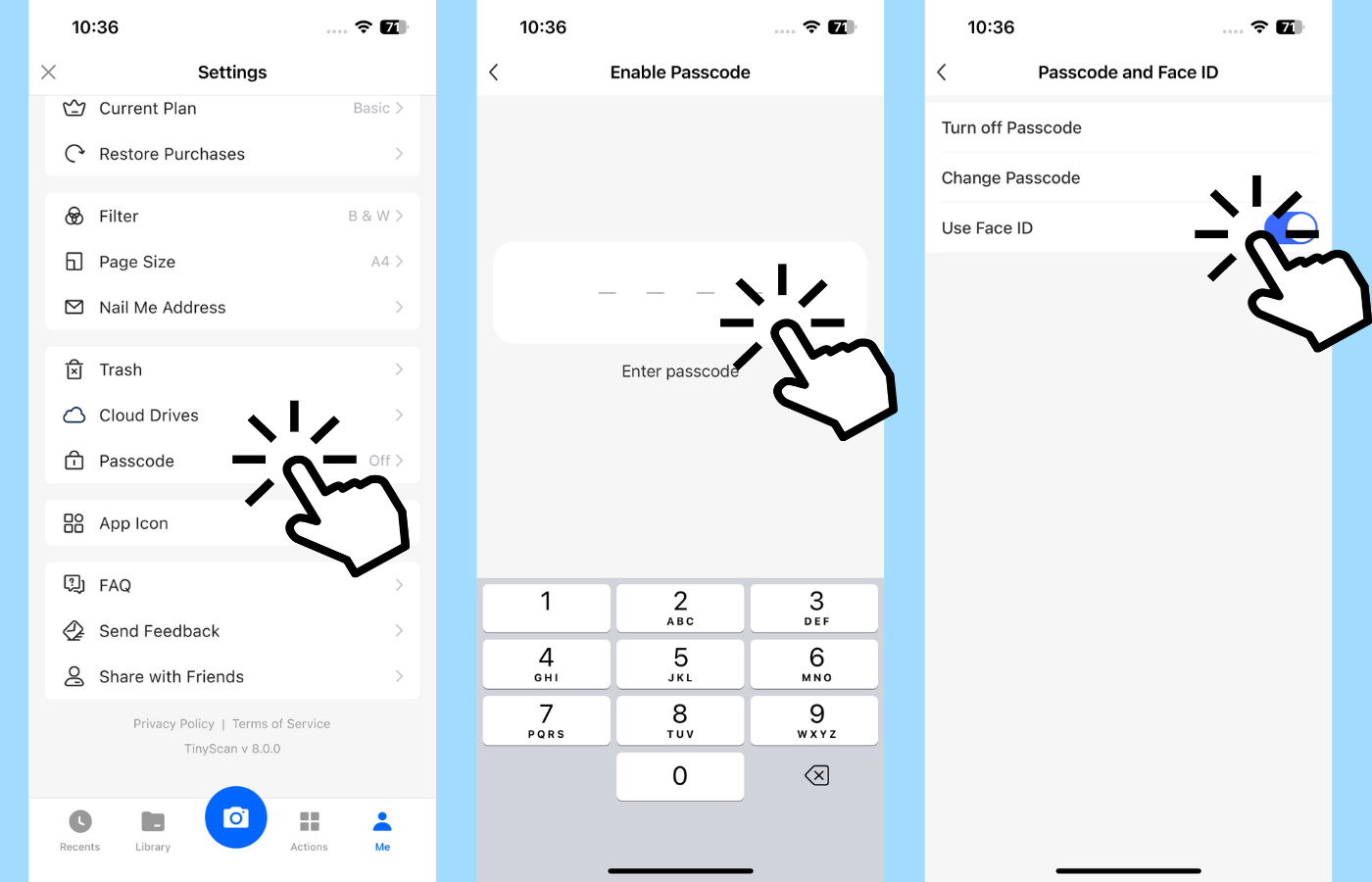
Securing App Access: Setting a Four-digit PIN or Face ID
1. Go to Settings and tap “Password”.
2. Enable the password, enter and confirm a PIN.
3. Add Face ID for enhanced security.
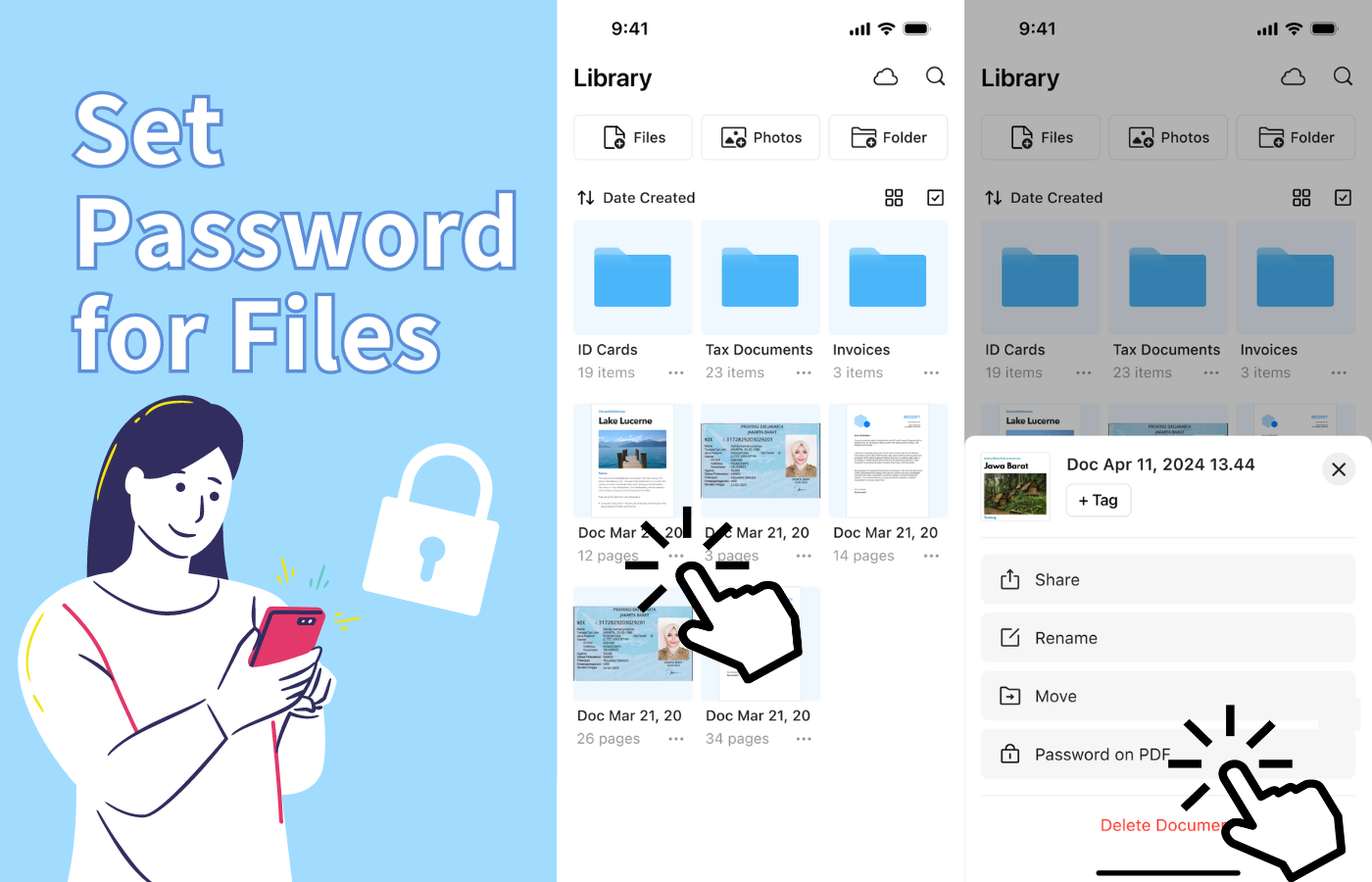
PDF Encryption: Adding Passwords to Files
1. Select the file to encrypt and tap the “...” in the bottom right.
2. Tap “Password on PDF” to encrypt, ensuring only those with the password can access the file.
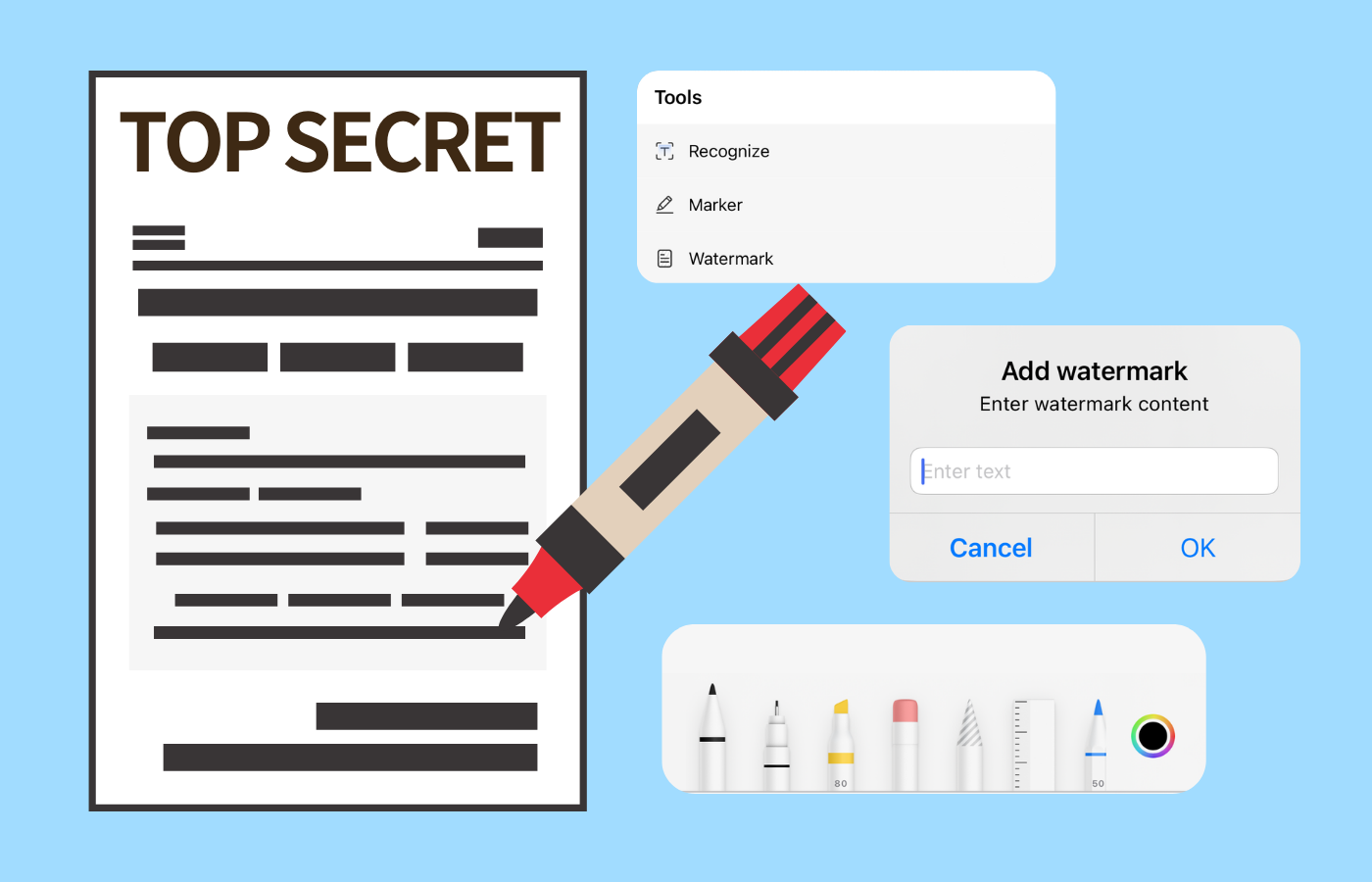
Privacy Marking: Protecting File Contents
1. Select the file and enter the editing interface.
2. Tap the “Tools” button in the bottom right and choose “Marker”。
3. Use one of seven tools to cover sensitive parts, preventing data leaks.
4. Add a “watermark” with custom text for further protection.
Preventing Privacy Leakage: Secure Backup and Recovery
1. Upload important files to the cloud for backup.
2. Log out from the current device to prevent unauthorized access.
3. Recover deleted files from the trash within seven days to ensure data isn’t lost.
Conclusion
Securing your scanned documents is a vital step in protecting sensitive information from unauthorized access and potential breaches. By using Tiny Scanner's encryption features, you can ensure that your important files are safeguarded, providing peace of mind and compliance with data protection regulations. Follow the steps outlined in this guide to make the most of Tiny Scanner’s capabilities and keep your digital documents secure.